
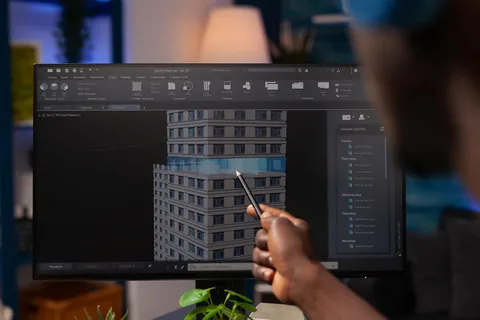
If you’ve ever tried moving a model from SOLIDWORKS into Blender, you already know the pain. Geometry shows up fine, but materials? Gone. Or worse—half-broken. Engineers and artists live in different worlds, and materials are often the language barrier between them.
Automation is the bridge. Instead of rebuilding materials every single time, a smart workflow can move appearances from SOLIDWORKS into Blender’s Cycles or Eevee automatically, saving hours and a few headaches.
Why Engineers and Artists Work Together
SOLIDWORKS excels at precision. Blender shines at visuals. When these two join forces, you get photorealistic product renders, animations, and even AR-ready assets. Automation keeps that collaboration smooth.
The Growing Need for Automation
Manual material assignment doesn’t scale. One design change can mean redoing everything. Automation makes updates painless like syncing your phone instead of typing contacts one by one.
Understanding Material Systems in SOLIDWORKS and Blender
How SOLIDWORKS Handles Materials
SOLIDWORKS separates physical materials from appearances. Physical materials affect mass and simulations, while appearances control how the model looks.
Appearance vs Physical Material
This distinction matters. Blender only cares about appearances, not density or yield strength. If appearances aren’t applied correctly, Blender has nothing to work with.
Blender Materials Explained
Blender uses node-based materials. Think of them as LEGO blocks for shading.
Cycles vs Eevee Rendering Engines
Cycles is realistic but heavy. Eevee is fast and real-time. Automation needs to account for both, because what works in Cycles might look flat in Eevee.
Challenges When Transferring Materials Manually
Lost Textures and Colors
Manual imports often drop textures, ignore roughness, or flatten everything into a single gray shader. That’s not helpful.
Time Consumption and Human Error
Clicking the same buttons repeatedly invites mistakes. Automation removes the human factor from repetitive tasks.
Still faced Challenges, check this: How to Automate Material Transfer from SOLIDWORKS to Blender Cycles/Eevee
Why Engineers and Artists Work Together
SOLIDWORKS excels at precision. Blender shines at visuals. When these two join forces, you get photorealistic product renders, animations, and even AR-ready assets. Automation keeps that collaboration smooth.
The Growing Need for Automation
Manual material assignment doesn’t scale. One design change can mean redoing everything. Automation makes updates painless—like syncing your phone instead of typing contacts one by one.
Understanding Material Systems in SOLIDWORKS and Blender
How SOLIDWORKS Handles Materials
SOLIDWORKS separates physical materials from appearances. Physical materials affect mass and simulations, while appearances control how the model looks.
Appearance vs Physical Material
This distinction matters. Blender only cares about appearances, not density or yield strength. If appearances aren’t applied correctly, Blender has nothing to work with.
Blender Materials Explained
Blender uses node-based materials. Think of them as LEGO blocks for shading.
Cycles vs Eevee Rendering Engines
Cycles is realistic but heavy. Eevee is fast and real-time. Automation needs to account for both, because what works in Cycles might look flat in Eevee.
Challenges When Transferring Materials Manually
Lost Textures and Colors
Manual imports often drop textures, ignore roughness, or flatten everything into a single gray shader. That’s not helpful.
Time Consumption and Human Error
Clicking the same buttons repeatedly invites mistakes. Automation removes the human factor from repetitive tasks.
File Formats That Support Material Transfer
STEP and IGES Limitations
STEP and IGES are geometry kings—but material peasants. They rarely carry appearance data in a useful way.
FBX, OBJ, and glTF Advantages
FBX and OBJ can carry colors and textures. glTF goes further by supporting modern PBR workflows.
Why glTF Is a Game Changer
glTF speaks Blender’s language. It’s lightweight, standardized, and automation-friendly. If automation is your goal, glTF is your best friend.
Preparing Your SOLIDWORKS Model for Automation
Cleaning Geometry
Messy geometry leads to broken shading. Suppress unnecessary features and simplify before export.
Naming Materials Correctly
Automation relies on names. “Red Plastic” beats “Appearance123” every time.
Applying Appearances the Right Way
Apply appearances at the part level—not face-by-face—unless you enjoy debugging chaos later.
Exporting from SOLIDWORKS for Blender Compatibility
Recommended Export Settings
Use high-quality mesh resolution, enable appearance export, and avoid overly aggressive tessellation.
Color and Texture Preservation Tips
Embed textures when possible. External references can break automation pipelines.
Using Blender Add-ons to Automate Material Import
Native Blender Importers
Blender’s built-in FBX and glTF importers already do a decent job. Sometimes, that’s enough.
Third-Party Add-ons
CAD Sketcher
Great for precision imports, especially when CAD accuracy matters.
BlenderBIM
Excellent for structured material data and naming consistency.
glTF Tools
Perfect for automating PBR material imports with minimal tweaking.
Automating Material Conversion with Python
Why Python Is the Secret Sauce
Blender’s Python API lets you automate everything—from importing files to building node trees.
Basic Blender Python Workflow
A script can scan materials, detect names, and replace them with predefined Cycles or Eevee shaders automatically.
Mapping SOLIDWORKS Materials to Blender Nodes
Think of it like a translator. “Polished Steel” becomes a Principled BSDF with high metallic and low roughness.
Automating for Cycles Rendering
Converting Appearances to PBR Materials
Cycles loves realism. Map diffuse colors, roughness, metallic values, and normal maps carefully.
Handling Roughness, Metallic, and Normals
Small tweaks here make the difference between “CAD-looking” and “photo-real”.
Automating for Eevee Rendering
Optimizing Materials for Real-Time Rendering
Eevee needs simplified shaders. Automation can strip unnecessary nodes automatically.
Dealing with Transparency and Reflections
Screen-space tricks require specific settings. Automate them once—reuse forever.
Building a Fully Automated Pipeline
Folder-Based Automation
Drop a file in, get a render out. Simple, powerful, addictive.
Batch Import and Material Assignment
Perfect for large assemblies or frequent revisions.
One-Click Update Workflows
Change the CAD model, re-export, re-import, done. No manual cleanup.
Best Practices for Reliable Automation
Consistent Naming Conventions
Automation hates surprises. Be boring. Be consistent.
Version Control for Materials
Keep material libraries versioned, just like code.
Testing Before Production
Always test automation on a small model first. Future you will say thanks.
Common Mistakes and How to Avoid Them
Overcomplicated Materials
CAD materials aren’t cinematic shaders. Keep them simple.
Ignoring Scale and Units
Wrong scale equals wrong shading. Always check units.
Real-World Use Cases
Product Visualization
Marketing-grade renders straight from engineering data.
Engineering Marketing Renders
No rework. No guesswork.
AR/VR and Interactive Content
Automated materials make real-time experiences possible.
Professional Automation Services for SOLIDWORKS to Blender Workflows
Not everyone has the time (or desire) to build and maintain a custom automation pipeline. In real-world production environments, speed and reliability matter more than tinkering. That’s where professional services come in. Teams that need robust, production-ready automation for transferring materials from SOLIDWORKS to Blender Cycles or Eevee often turn to specialized solution providers such as it-s.com, who focus on CAD-to-visualization workflows. Using expert services can help ensure consistent material mapping, fewer errors during updates, and a pipeline that scales as projects grow—without reinventing the wheel internally.
Future of CAD-to-Blender Automation
AI-Assisted Material Mapping
Soon, AI will guess materials better than humans.
Deeper glTF Integration
Expect tighter workflows and fewer hacks.
Conclusion
Automating material transfer from SOLIDWORKS to Blender Cycles or Eevee isn’t just a time-saver—it’s a mindset shift. When materials flow automatically, creativity stops fighting technology. With the right file formats, clean preparation, and a bit of Python magic, you can turn a tedious process into a smooth, repeatable pipeline that just works.
Why Engineers and Artists Work Together
SOLIDWORKS excels at precision. Blender shines at visuals. When these two join forces, you get photorealistic product renders, animations, and even AR-ready assets. Automation keeps that collaboration smooth.
The Growing Need for Automation
Manual material assignment doesn’t scale. One design change can mean redoing everything. Automation makes updates painless—like syncing your phone instead of typing contacts one by one.